

Where the database lives
It’s a single SQLite file plus
-wal and -shm siblings while the app is running. Recent writes can sit in the -wal file until SQLite checkpoints them, so a copy of privacy.db alone, taken while the app runs, can miss them. Stop the app first, or use the backup bundle below.
Quick file copy (simplest)
docker compose cp belong to root, and the server runs as the container’s audit user.
Backup bundle (versioned, app-aware)
GET /api/backup/export produces a single JSON file with every app, label, snapshot, annotation, notification, focus state, and feature-flag override. The envelope carries an integer version field — currently 1 — which is the bundle format version, not the app version. A bundle restores into any release that understands that format or a later one; a bundle from a newer format is refused with a message telling you to upgrade, rather than being misparsed. Tables missing on an older schema are skipped, so a newer bundle still restores what an older install can hold.
From the UI: Settings → Backup → Export bundle.
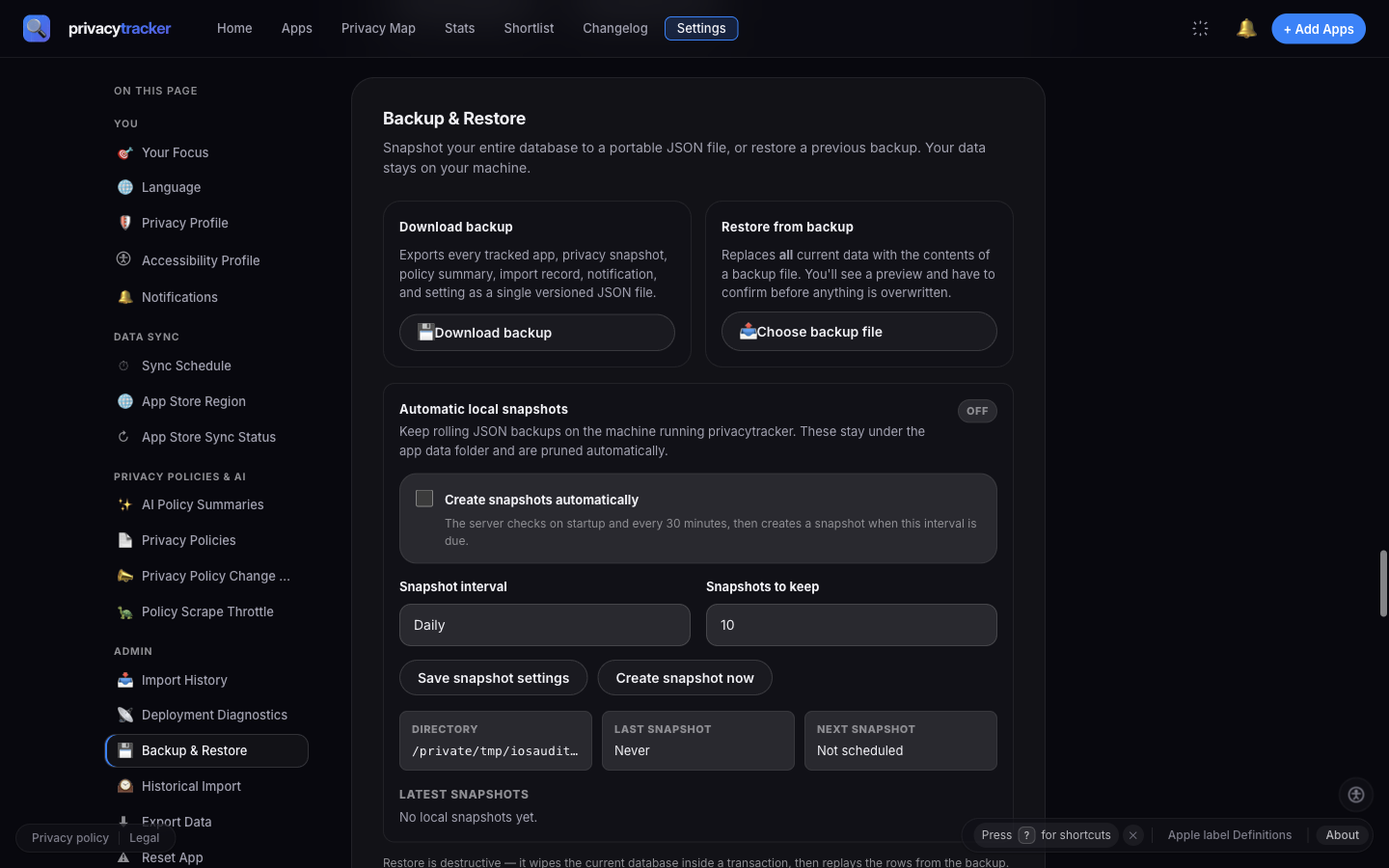
Backup and restore settings
gzip it for storage and restore from the gzipped form, the importer transparently decompresses.
Restore with preview
In the UI, restore is a two-step flow:POST /api/backup/preview shows what will be replaced, then you type RESTORE to confirm before anything is written.
From the UI: Settings → Backup → Import bundle → choose the file → confirm in the preview dialog.
From the API:
RESTORE string is a browser-side guardrail only — the route reads no confirm parameter, so a curl restores immediately. Take a file copy of data/privacy.db first as a safety net; restore wipes the existing database and reloads from the bundle.
Restore is rate-limited to 3 attempts per 10 minutes and requires the admin token when one is configured.
Restoring a bundle from another install
Every exported bundle carries an HMAC-SHA256 signature computed with a per-install key at<data dir>/backup-signing.key. That key is generated on first use and never leaves the machine, so a bundle exported by a different install — a different container, a different Mac, a fresh data directory — cannot verify. Restoring one is rejected:
x-allow-untrusted-backup: 1 does the same thing. Both accept 1 or true. Rows from an untrusted bundle are still sanitised on the way in, but the signature no longer tells you where the file came from — only restore a bundle you can vouch for yourself.
Server-local rolling snapshots
privacytracker can keep its own rolling snapshots in the data directory underdata/backups/ — useful if you don’t want to wire up an external backup tool but still want a few historical copies on hand.
They are off by default. Turn them on and configure them in Settings → Backup → Automatic local snapshots:
The server checks on startup and on each 30-minute tick, writing a snapshot when the interval is due. Snapshots use the same versioned JSON bundle format. List them via
GET /api/backup/snapshots; download a specific one via GET /api/backup/snapshots/<filename>.
Migrating between install paths
The same versioned bundle works as the migration vehicle, with one caveat: the destination is a different install, so the bundle’s signature won’t verify there. Every migration below needs theallowUntrusted opt-in described in Restoring a bundle from another install, which today means finishing the restore through the API rather than the UI.
Docker → desktop app
1
Export from Docker
2
Stop the Docker stack
3
Install the desktop app
Download the latest
.dmg from Releases, drag to /Applications, launch.4
Import the bundle
Launch the desktop app once so it creates its data directory, then restore through the API with the untrusted opt-in — the bundle was signed by the Docker install, so the UI path rejects it:The desktop app serves on
127.0.0.1 at a port of its own, not 3000. The Host row under Settings → Admin → Deployment Diagnostics shows it; use it in both the URL and the Origin header. From the first release on the Rust backend the app keeps that port from one launch to the next, where earlier releases pick a new one at every launch.Desktop app → Docker
Same flow in reverse. Export from the desktop app’s Settings → Backup, drop the JSON next todocker-compose.yml, start the stack, then restore with ?allowUntrusted=1 against http://localhost:3000.
Source checkout → Docker (or vice versa)
A source checkout keeps its database at./data/privacy.db. Docker does too with the bind-mount file (see Installation → Docker); otherwise it keeps it in the privacytracker-data volume. So you can either:
- Copy the file between the two when both use
./data, or - Use the bundle export/import flow (recommended: it works with the volume, and it also handles schema upgrades).
What’s not in a backup
A bundle restore replaces app data and settings. It does not restore:- Auto-update binaries — those are managed by Tauri’s updater on the desktop app or
brew upgradeon Homebrew. - Environment variables —
AUDITOR_ADMIN_TOKEN, etc., are external to the database. Re-set them in your runtime config. - iPhone import helper output — those are stand-alone
.txt/.csvfiles; back them up separately if you want to keep them. - The backup signing key —
backup-signing.keysits next toprivacy.dbin the data directory, deliberately outside the database so a reset or restore can’t invalidate your existing bundles. A plain file copy of the wholedata/directory carries it along; a bundle export doesn’t.
Disaster recovery
Ifdata/privacy.db is corrupted (rare; SQLite is durable, but not invincible to underlying disk failure):
1
Quarantine the broken DB
Don’t run the app against a corrupted file — it can make things worse.
2
Try sqlite3 .recover
3
Or restore the most recent backup
Drop your last good
.db (or import a bundle) and start the app. Schema migrations run on boot, so older backups upgrade automatically.4
If both fail
Start fresh with Settings → Reset DB (or
POST /api/reset with the admin token). You’ll re-import apps via the onboarding wizard.Verifying a backup
A good habit is to periodically verify your backups by restoring one into a throwaway instance. The throwaway has a fresh data dir and therefore a fresh signing key, so the bundle reads as untrusted there — passallowUntrusted=1:
backup-signing.key from the source install’s data directory into test-data/ before starting the container. The restore then succeeds without the flag — which proves the bundle really was produced by that install and hasn’t been altered since.